
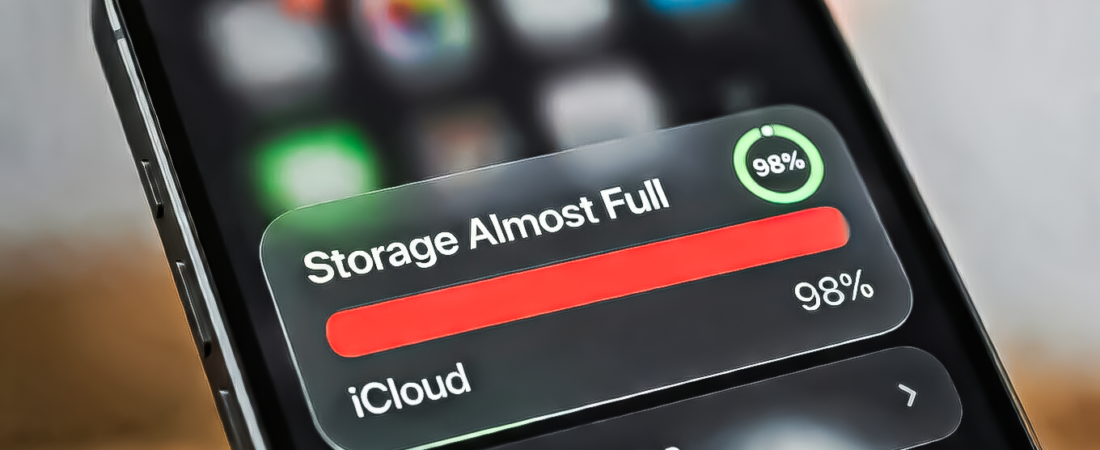
If your iPhone keeps showing the “Storage Almost Full” warning, you’re not alone. High-resolution photos, 4K videos, apps, and cached data can quickly fill up your device. In this guide, iPhone Storage Full? 10 Powerful Ways to Free Up Space on Your iPhone Fast, we’ll focus mainly on less-known and more effective methods to clear storage and recover several gigabytes without losing important files.
Many people delete a few photos or apps and think that’s the only way to free storage. In reality, hidden files, message attachments, and system data often take much more space than you expect.
1. Delete Large Message Attachments
Messages can quietly consume several gigabytes, especially if you frequently receive videos, photos, or memes.
How to remove them:
- Go to Settings
- Tap General
- Open iPhone Storage
- Tap Messages
You will see categories such as Photos, Videos, GIFs, and Stickers. Deleting large videos and media from here can instantly free several gigabytes.
2. Remove Duplicate Photos Automatically
Modern iPhones automatically detect duplicate photos, which makes cleaning your gallery much easier.
Steps:
- Open Photos
- Tap Albums
- Scroll to Duplicates
- Tap Merge
This feature removes duplicate copies while keeping the best version, helping you clear storage quickly.
3. Clear App Cache by Reinstalling Apps
Many apps store temporary data and cache files that slowly grow over time. Social media apps like Instagram or TikTok can easily use over 1–2 GB of storage because of cached media.
The easiest solution:
- Delete the app
- Reinstall it from the App Store
This removes all cached files while keeping your account information.
4. Delete Downloaded Content From Streaming Apps
Streaming apps often download content for offline viewing without you realizing how much storage it uses.
Check apps such as:
- Netflix
- Spotify
- YouTube
- Podcasts
Removing downloaded shows, songs, and videos can instantly free several gigabytes.
5. Optimize Photo Storage With iCloud
Instead of storing full-resolution photos on your device, you can enable optimized storage.
Steps:
- Open Settings
- Tap your Apple ID
- Go to iCloud → Photos
- Enable Optimize iPhone Storage
This keeps smaller versions of photos on your phone while the originals remain in the cloud.
6. Delete Screen Recordings and Long Videos
Screen recordings and 4K videos consume massive storage. A few minutes of 4K recording can easily take hundreds of megabytes.
To remove them:
- Open Photos
- Go to Albums
- Select Screen Recordings or Videos
- Delete large files you don’t need.
7. Clear Safari Cache and Website Data
If you browse frequently, Safari stores a lot of cached files and cookies.
Steps:
- Open Settings
- Tap Safari
- Select Clear History and Website Data
This removes stored browsing data and frees some storage.
8. Use the “Review Large Attachments” Feature
iOS includes a hidden feature that lists the largest files on your device.
To find it:
- Go to Settings
- Tap General
- Open iPhone Storage
- Scroll down to see recommendations.
Apple often suggests removing large attachments or unused apps, making it easier to clear space quickly.
9. Offload Apps Without Losing Data
If you don’t want to delete apps completely, you can offload them.
This removes the app but keeps its documents and data so you can reinstall it later.
Steps:
- Go to Settings
- Tap General
- Select iPhone Storage
- Tap the app
- Choose Offload App
10. The Basic Methods (Quick Mention)
These are the obvious ones but still useful:
• Delete unused apps
• Remove unnecessary photos
• Empty the Recently Deleted album
Even though these are basic, doing them regularly helps maintain free storage.
Frequently Asked Questions (FAQ)
Why does my iPhone storage fill up so quickly?
Modern iPhones capture high-resolution photos and 4K videos, which consume large amounts of storage. Apps, cached files, message attachments, and downloads also contribute to storage usage over time.
What takes the most storage on an iPhone?
Usually the biggest storage users are:
- Photos and videos
- Apps and games
- Message attachments
- Downloaded media from streaming apps
Videos are often the largest files on a device.
Does deleting apps free up storage immediately?
Yes. When you delete an app, all of its files and cache are removed instantly. However, if you offload an app instead, the app itself is removed but its data remains on the device.
Is iCloud necessary to free iPhone storage?
Not necessarily, but it helps significantly. Using Optimize iPhone Storage stores full-resolution photos in iCloud while keeping smaller versions on your device.
Can restarting an iPhone free storage?
Restarting does not remove large files, but it can clear temporary system data and cache, which may free a small amount of storage.
Final Thoughts
Running out of storage on an iPhone can be frustrating, but most of the space is usually taken up by hidden files, large attachments, and cached app data. By removing duplicates, clearing app cache, deleting downloads, and managing message attachments, you can recover a large amount of storage without deleting important data.
Regularly checking your iPhone storage and cleaning unnecessary files can keep your device fast, organized, and ready for new apps, photos, and videos.
Related posts:
 IPhone 17 Pro vs Galaxy S26 Ultra: Which Should You Buy in 2026?
 Best iPhone Hacks 2026 (iOS 26 Edition) 🔥📱
 iPhone 17e: Apple’s Smartest Value Flagship of 2026
 iPhone 17e: A Masterstroke or Another Failure Like iPhone 16e?
 How to Get 2TB Free Storage
 Honor Robot Phone vs iPhone 17 Pro: Innovation vs Perfection
 Budget MacBook, Budget iPhone and More: What to Expect at Apple’s 4 March Event
 Honor Robot Phone: The Smartphone With a Gimbal 🤯
 New Mac Studio M5 Ultra 2026: Apple’s Most Powerful Desktop Yet
🍏 Apple’s March 2026 Launch: iPhone 17e, M4 iPad Air and M5 Macs Take Center Stage
New Mac Studio M5 Ultra 2026: Apple’s Most Powerful Desktop Yet
🍏 Apple’s March 2026 Launch: iPhone 17e, M4 iPad Air and M5 Macs Take Center Stage